
Project goal
This mini-project documents a controlled lab exercise where I captured and analyzed network traffic with Wireshark to compare how four common protocols behave on the network: SSH, Telnet, FTP, and HTTP. The focus is defensive learning: understanding what information is visible to anyone who can sniff traffic, and why using encrypted alternatives matters.
Lab scope and ethics
Everything shown here was performed in my own lab environment on systems I control. This is a learning exercise intended for defensive awareness, troubleshooting skills, and secure protocol selection.
Lab environment
Topology
My setup includes:
- A Windows 11 host running Wireshark (sniffing point).
- Kali Linux (client) and Metasploitable2 (server) running as VMware VMs for SSH and Telnet testing.
- Windows Server 2019 used to host FTP and HTTP services.

Addressing (bridged mode)
I switched VMware networking to Bridged mode, so every VM received an IP address from the same LAN/DHCP as the host. In my capture results, the key IPs were:
- Windows 11 (Wireshark host):
192.168.1.4 - Metasploitable2:
192.168.1.210 - Windows Server 2019:
192.168.1.214
Note: if someone reproduces this lab, these IPs may differ depending on the local network DHCP.
Choosing the right capture interface (Windows)
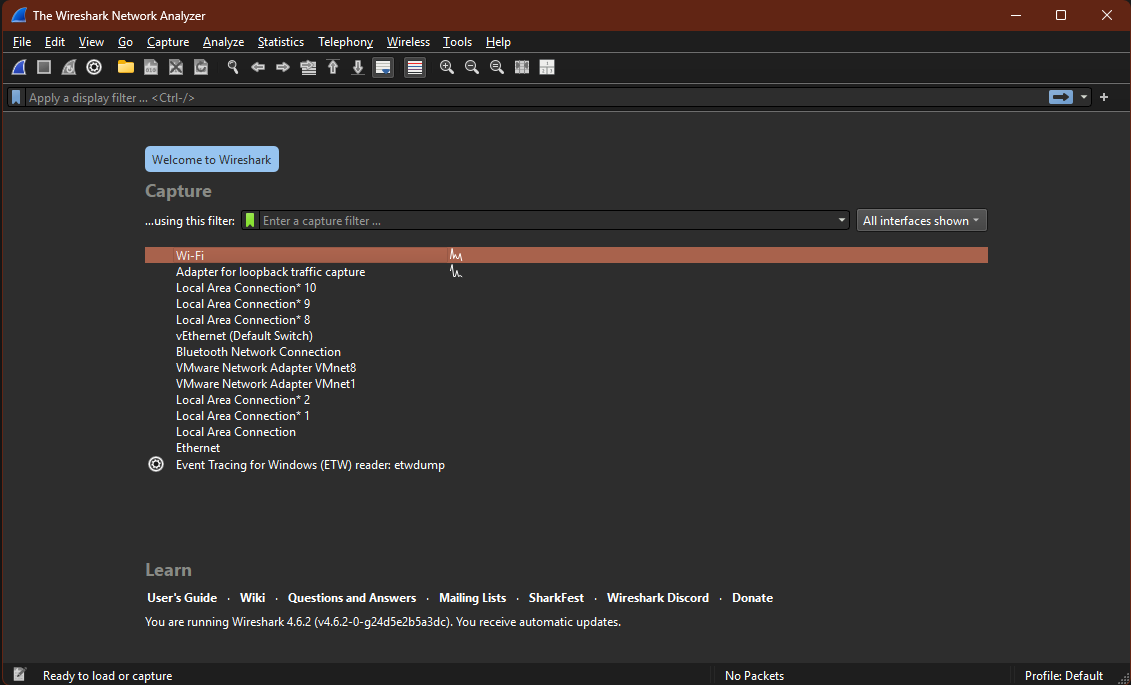
On Windows, selecting the correct Wireshark interface is critical. Since my VMs were bridged, I captured on the Wi‑Fi interface of the Windows 11 host (the physical interface connected to the LAN). After starting capture, I generated traffic (Telnet/SSH/FTP/HTTP) and confirmed packets appeared on that interface.
Capture and filtering strategy
Capture filter (reduce noise)
To keep the capture clean, I limited traffic to the protocol ports used in this lab:
- Capture filter:
tcp port 22 or tcp port 23 or tcp port 21 or tcp port 80
This reduced background traffic while still capturing everything needed for the scenario.
Display filters (analysis phase)
During analysis, I used display filters to isolate each protocol:
- Telnet:
telnetortcp.port == 23 - SSH:
sshortcp.port == 22 - FTP control channel:
ftportcp.port == 21 - HTTP:
httportcp.port == 80
When needed, I also filtered by IP pairs (example patterns):
ip.addr == 192.168.1.210 && tcp.port == 23ip.addr == 192.168.1.214 && tcp.port == 80
Test 1 — Telnet (plaintext, high risk)
What I did
From Windows (PuTTY), I initiated a Telnet connection to Metasploitable2:
- Target:
192.168.1.210 - Port:
23
I logged in and ran a few commands to generate clear application traffic:
sudo supwdlswhoami

What I observed in Wireshark
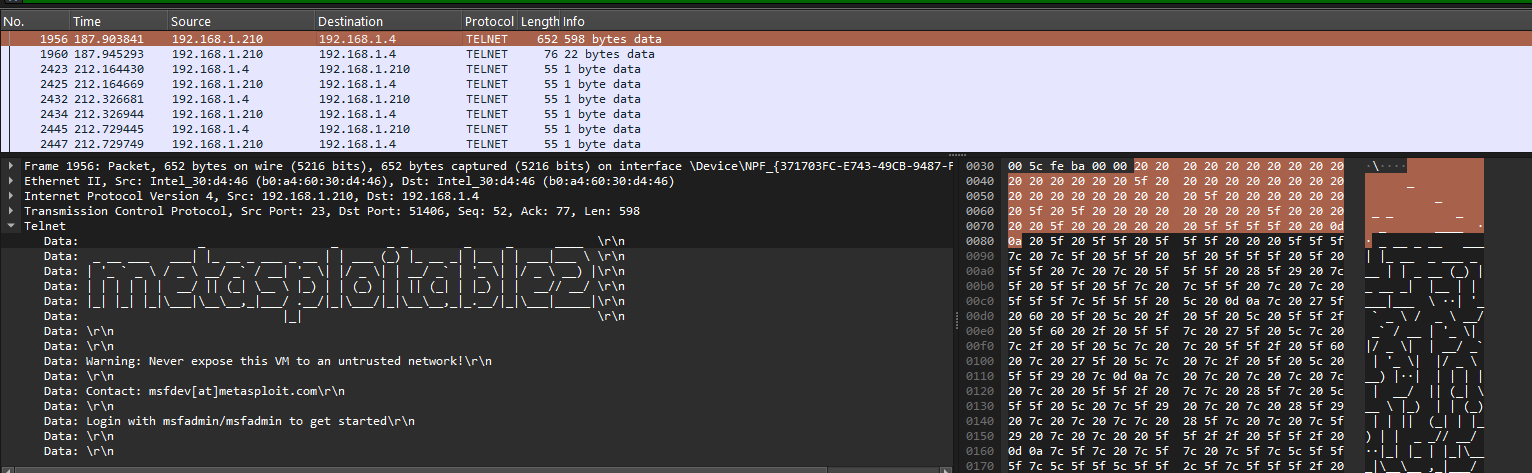
After stopping the capture, I filtered on Telnet traffic and inspected packets between:
- Client:
192.168.1.4 - Server:
192.168.1.210
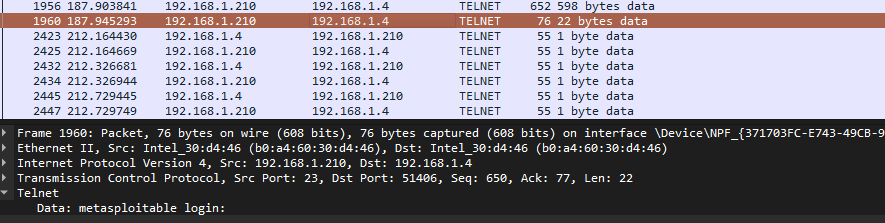
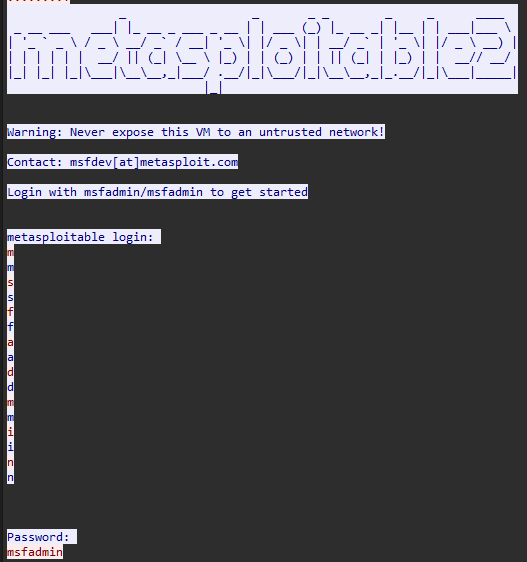
The Telnet payload contained readable text (server banner, prompts, and user input). To confirm full visibility, I used:
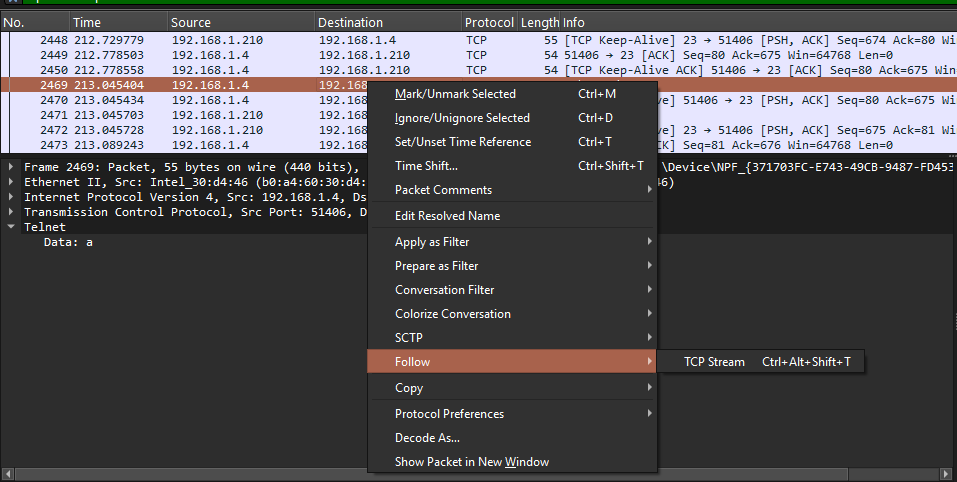
- Right-click a Telnet packet → Follow → TCP Stream
This reconstructed the full conversation and revealed the login exchange and commands in cleartext, demonstrating that Telnet offers no confidentiality on the network.
Security takeaway
Telnet is unsafe for remote administration on any network where traffic could be observed. Credentials and commands can be exposed directly from packet captures.
Test 2 — SSH (encrypted, safer by design)
What I did
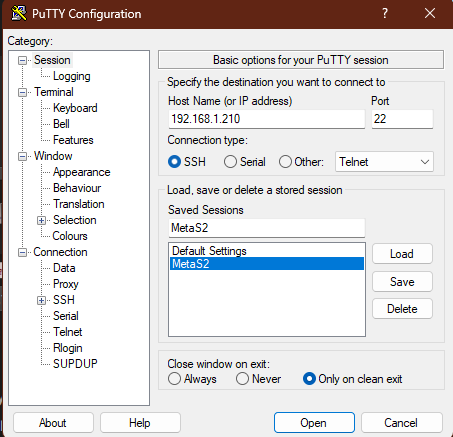
Using PuTTY again, I initiated an SSH session to the same host:
- Target:
192.168.1.210 - Port:
22
What I observed in Wireshark
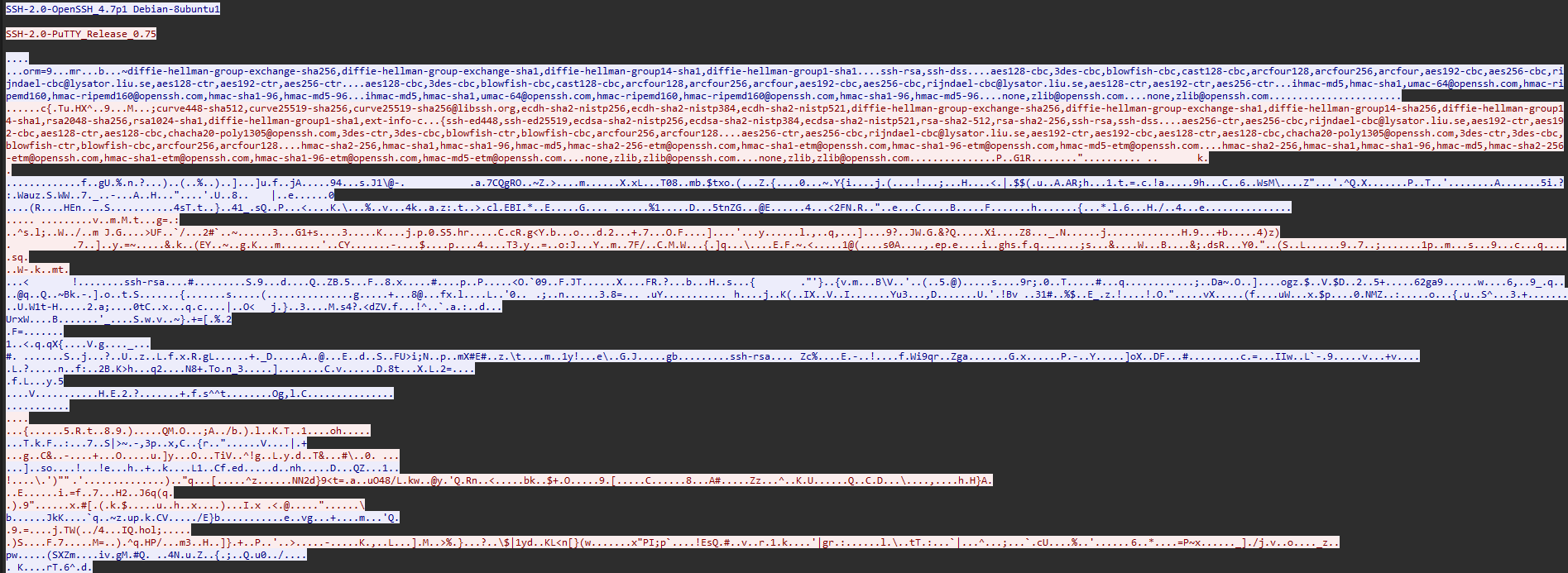
When filtering on SSH traffic, I could see:
- The TCP connection establishment.
- SSH protocol negotiation details (client/server identification and handshake messages).
However, unlike Telnet, the actual credentials and commands were not readable in the packet payload. The data after negotiation appeared as encrypted binary content, which is the expected and desired behavior of SSH.
Security takeaway
SSH still produces network artifacts (IPs, ports, timings, handshake metadata), but it protects the confidentiality of what matters most: authentication material and interactive commands.
Test 3 — FTP (plaintext credentials on the control channel)
What I did
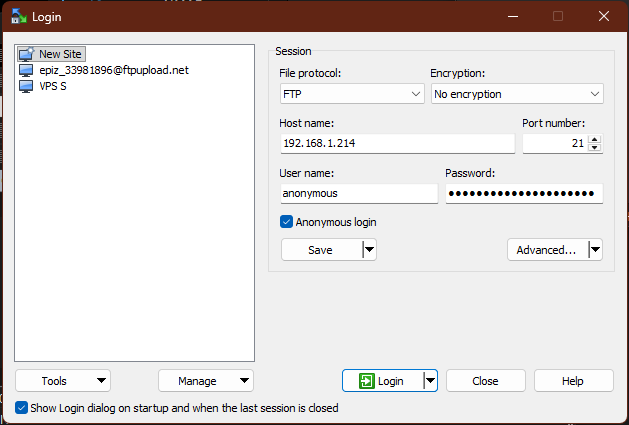
I connected to my Windows Server 2019 FTP service:
- Server:
192.168.1.214 - Port:
21 - Login used in this test:
anonymous(with an email-style password)
[IMAGE PLACEHOLDER: FTP client configuration showing server 192.168.1.214 and port 21]
What I observed in Wireshark
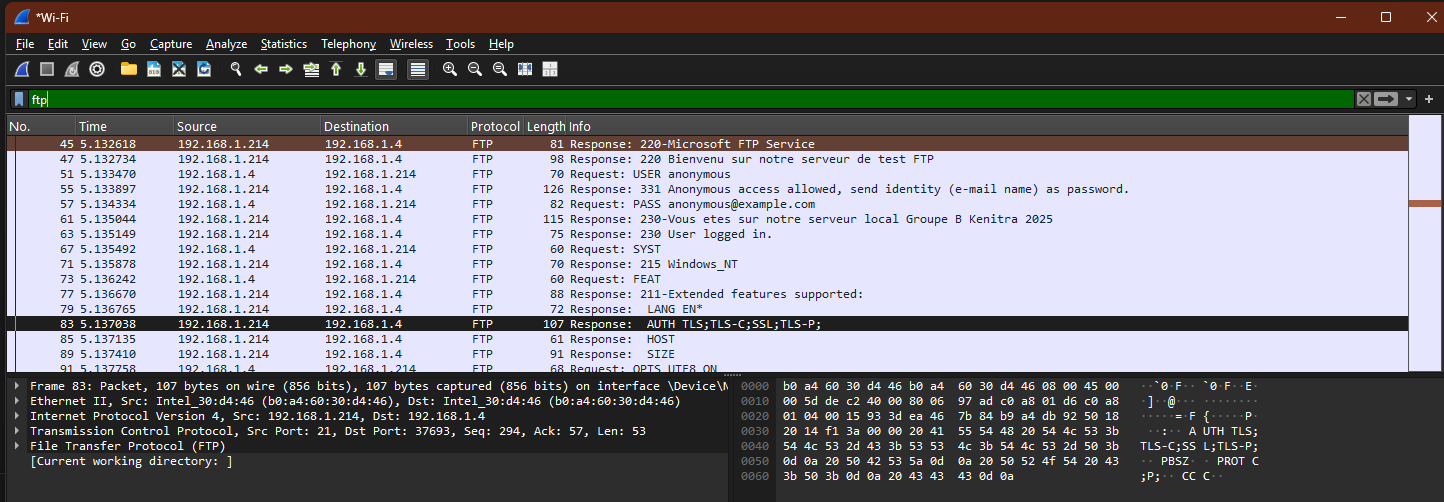
After applying the FTP filter, the control-channel conversation showed common FTP responses and commands. Most importantly, the capture clearly displayed the authentication sequence:
USER anonymousPASS ...
This confirms a key security issue: classic FTP transmits authentication details in cleartext unless upgraded to a protected variant (FTPS) or replaced by SFTP.
Security takeaway
FTP should not be used for authentication or file transfer over untrusted networks because credentials can be captured. Prefer SFTP or FTPS depending on environment and requirements.
Test 4 — HTTP (plaintext requests and retrievable objects)
What I did
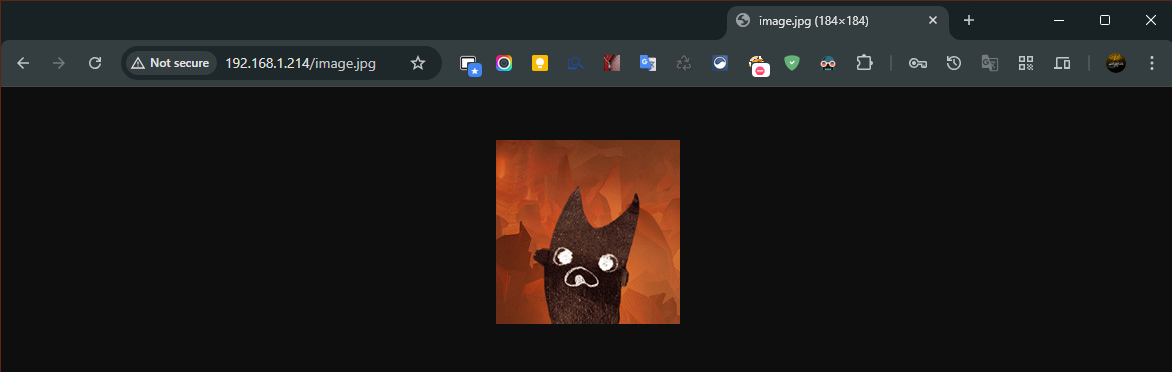
From the Windows 11 host, I browsed to an HTTP resource hosted on Windows Server 2019:
- URL tested:
http://192.168.1.214/image.jpg
What I observed in Wireshark
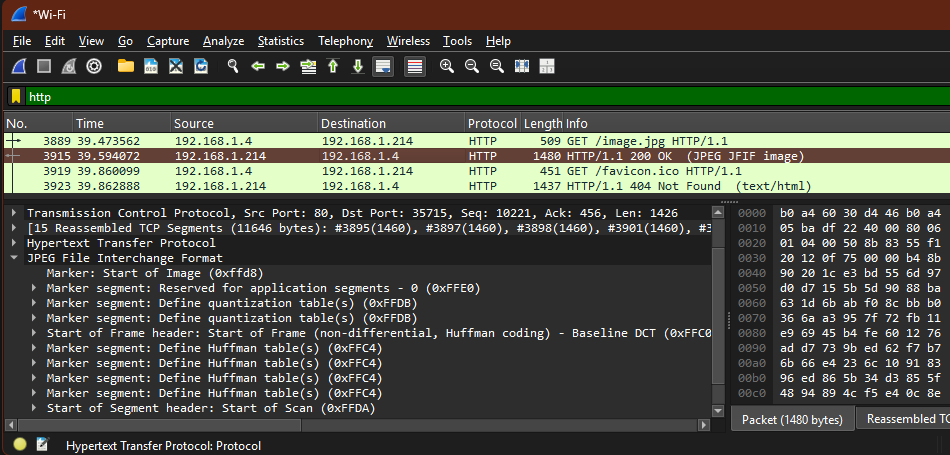
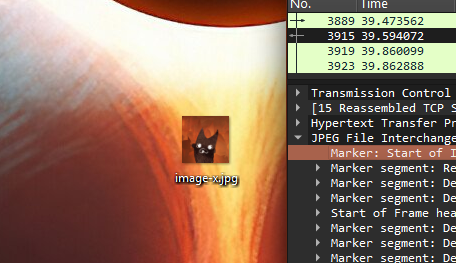
Filtering for HTTP showed the request clearly, including the resource path:
GET /image.jpg HTTP/1.1Host: 192.168.1.214
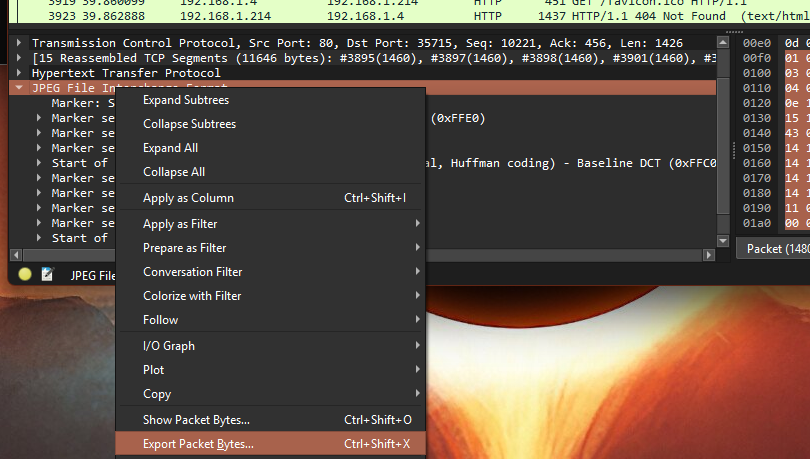
Since this was plain HTTP (not HTTPS), the request metadata was visible in cleartext. I also confirmed that the HTTP response carried the JPEG data, and Wireshark allowed exporting the object bytes to reconstruct the file from captured traffic.

Security takeaway
HTTP does not provide confidentiality. Anyone with capture visibility can see requests and potentially reconstruct downloaded content. For web traffic carrying sensitive data, HTTPS is required.
Key results (what this lab proved)
- Telnet exposed the full interactive session in readable form, including authentication and commands.
- SSH protected session contents; only negotiation and encrypted payload were visible.
- FTP exposed the login exchange (
USER/PASS) on the network. - HTTP exposed requests in plaintext and allowed reconstruction of downloaded content.
This exercise reinforced a practical defensive lesson: protocol selection is a security control. Whenever possible, use encrypted options (SSH/SFTP/FTPS/HTTPS) and disable legacy plaintext services (Telnet/FTP/HTTP for sensitive use cases).
Reproducibility notes
- If your VMs are bridged, capture on the host’s physical interface (Wi‑Fi/Ethernet) that shows activity when you generate lab traffic.
- Use a port-based capture filter (22/23/21/80) to reduce noise, then apply display filters per protocol for analysis.
- “Follow TCP Stream” is the fastest way to reconstruct Telnet/FTP conversations for learning and validation in a lab setting.
Disclaimer
This project is for educational purposes in an isolated lab. Do not capture or inspect traffic on networks without explicit authorization.
Credits / Acknowledgments
This mini-project was inspired by the following tutorial, which helped me understand how different protocols appear in Wireshark and how to analyze them responsibly:
- Dan’s Courses — Wireshark Packet Sniffing Usernames, Passwords, and Web Pages (YouTube, 2015): Wireshark Packet Sniffing By Dan’s Courses
Wireshark was originally created by Gerald Combs and is developed and maintained by the Wireshark Foundation and the open-source community.